
This is an old revision of the document!
Table of Contents
ORSEE - Online Recruitment System for Economic Experiments
On this page you will find general information about ORSEE.
1. Access to ORSEE
The access link depends on whether you are member of the TUD Faculty of Psychology, or member of a collaborative research centre (CRC). Please select the corresponding page for the CRCs:
For TUD Faculty of psychology members the link is here https://zep.psych.tu-dresden.de/orsee/public/
1.1 VPN
VPN access is not required.
1.2 Registration
The system has its own user registration system. More information will follow soon.
❕More information to the access can be found in the FAQ and video tutorials in the section “Access to ORSEE”.
2. ORSEE-Payment (for TU Dresden Members)
Information about ORSEE-Payment, concerning TU Dresden members, can be found here.
3. ORSEE Tutorials
3.1. FAQ
3.1.1 General Questions
Are the details on the website up to date?
How does public relations work?
3.1.2 Access to ORSEE
Is there access for experimenters outside of psychology faculty?
Why doesn't my password work?
3.1.3 Setting up an Experiment
How can I create a new experiment?
How can I create a laboratory session?
- A session is an appointment for your experiment.
- select the experiment in which you want to create a session under My Experiments on the left side bar (see picture below)

- select the experiment in which you want to create a session under My Experiments on the left side bar (see picture below)

3.1.4 Adding and Editing Participants
How does the filter function for the subject search work?
- Before you forward a circular email or a recruitment email to all participants, we ask you to use the filter function
- It is possible to filter the participants in advance according to age, gender, etc. before an email is sent
- Older participants in particular complain about study invitations that do not correspond to their age
- Please follow the sequence of screen shots to realise this function:


3.1.5 E-Mail Recruitment
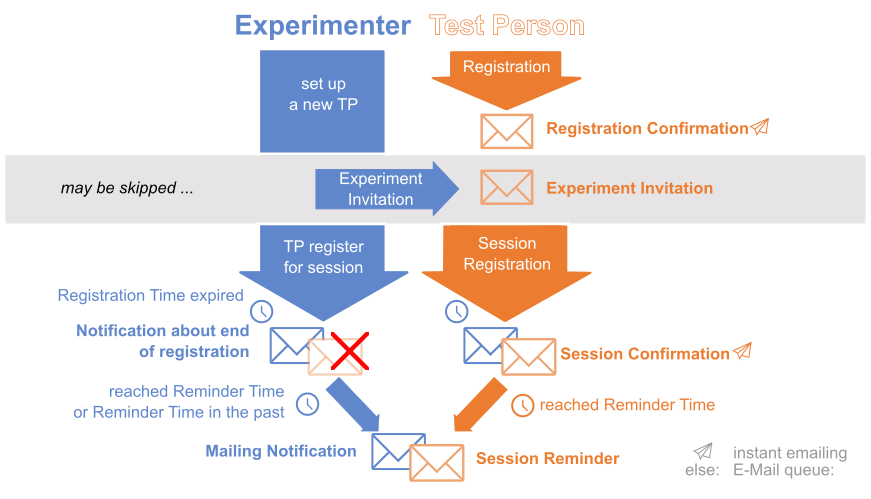
How does the E-Mail Recruitment Workflow work?
How can I individualize my recruitment text?
- You can customize the recruitment email template at any time
- for example, if you want to add important information or access links
- To do this, use the preset variables, which always start with a hash
- The variable #name for example inserts the name of the respective person in the invitation text
- Please pay attention that the following variables are always present in the invitation text: #fname# #lname# #sessionlist#
- Example text:


Why is my distribution email not being sent?
- the recruitment emails are sent in chunks every 5 minutes due to their data size, it may take a while until all the mails in the queue are sent
- Please be patient
3.2 Videos
| Assess to ORSEE | |
|---|---|
| Assessing ORSEE |
|
| |
|
| Setting up an Experiment | |
| Setting up an Experiment | Setting up a new Session |
| Setting up a new Session (fast) |
|
| |
|
| Adding & Editing Participants | |
| Adding Participants | Edit Participants |
| Register a Participant for a Session | Invite a Participant to an Experiment |
| |
|
| Email Recruitment | |
| Setting up an Email Text | Overview About Email Dispatch |
| Monitor Dispatch of Reminder Emails |
|
| Phone Screening | |
| Prepare and Evaluate Phone Screening | Organize a Callback |
| Dealing with No-Shows (call was not answered) |
|
| |
|
| Experiment Date Handling | |
| View Dates | Prepare and Evaluate Dates |
| |
|
Workshops
4. How Do I Get Support?
If you need support with an issue you may contact us at this mail address:
sfb940-inf@groups.tu-dresden.de
trr265-inf@groups.tu-dresden.de
❗️ To contact us please use your offical institutional email address.